sketchybar主题
sketchybar主题
Jaronsketchybar_theme
项目配置地址:https://github.com/codejaron/sketchybar_theme
由于我的Mac有“刘海”,所以当我打开如IntelliJ IDEA等软件时,菜单栏就会显示很多的应用程序菜单(显示当前活动应用程序的菜单,包括文件、编辑、视图等菜单选项)导致状态菜单(位于菜单栏的右侧,显示系统状态和功能的图标,例如 Wi-Fi 状态、电池电量、时钟、音量控制等)被挡。因为我在状态菜单处使用了iStat Menus,能够及时看到电脑状态,现在被挡住之后我无法再进行观察
所以我在GitHub上找到了sketchybar这个开源项目,使用了里面一些热心大佬提供的插件,并在此基础上进行了改造,最终得到了目前的菜单栏
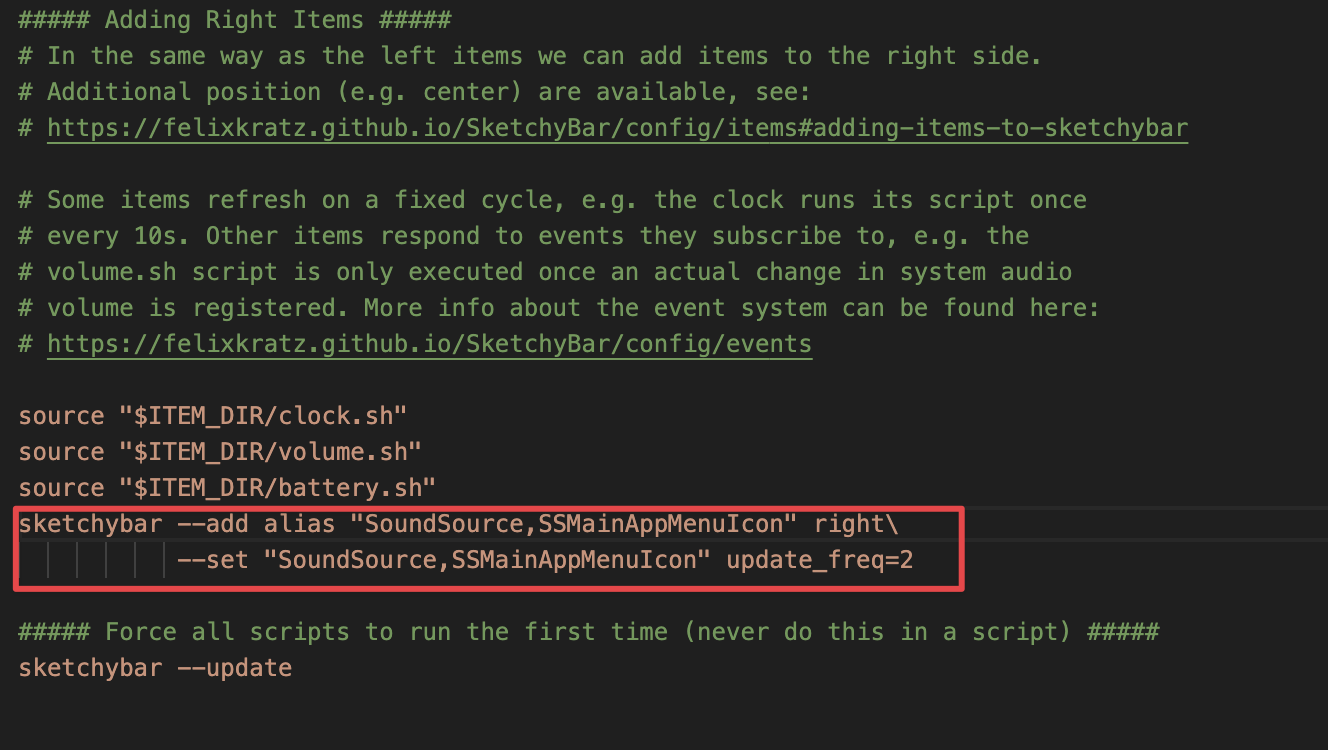
目前菜单栏的功能:最左侧的苹果图标点击后可显示如下三个选项,第一个是打开系统设置,第二个是打开活动监视器,第三个是锁屏(脚本是通过运行快捷键Control + Command + Q,请注意自己电脑锁屏快捷键是否为当前这个)
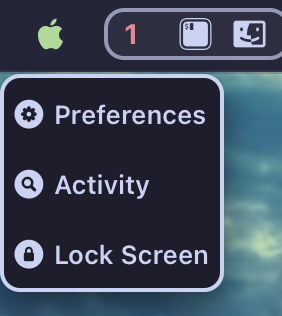
左侧菜单栏还有桌面显示,如下图,我现在第一个桌面有vscode、访达和iterm,第二个桌面有arc浏览器

右侧菜单栏从左到右依次为Spotify控制器、网络监视、内存监视、CPU监视,微信消息数、QQ消息数、电池、WI-FI、日期

点击最右侧的日期还可隐藏电池、WI-FI、日期的年月日,点击Wi-Fi还可展示当前私有IP地址


如何配置
将我github中的文件复制到/Users/你的用户名/.config/sketchybar路径内即可
sketchybar仓库地址:https://github.com/FelixKratz/SketchyBar
sketchybar官方文档:https://felixkratz.github.io/SketchyBar/config/bar
sketchybar插件库:https://github.com/FelixKratz/SketchyBar/discussions/12
sketchybar桌面配置库:https://github.com/FelixKratz/SketchyBar/discussions/47
sketchybar-app-font仓库地址:https://github.com/kvndrsslr/sketchybar-app-font
sketchybar简单配置
这里仅演示sketchybar简单配置,按照以下步骤仅能得到默认主题,这里建议直接gitclone我的代码,自己弄实在太麻烦了,如果想自己尝试做的话,可以参考以下内容
安装和启动
Brew Install
1 | brew tap FelixKratz/formulae |
安装字体
1 | brew install font-hack-nerd-font |
创建示例配置:
1 | mkdir -p ~/.config/sketchybar/plugins |
启动
1 | brew services start sketchybar |
配置
为了方便以后安装sketchybar社区插件,我们需要进行一些更改
1 | cd ~/.config/sketchybar |
1 | vim sketchybar |
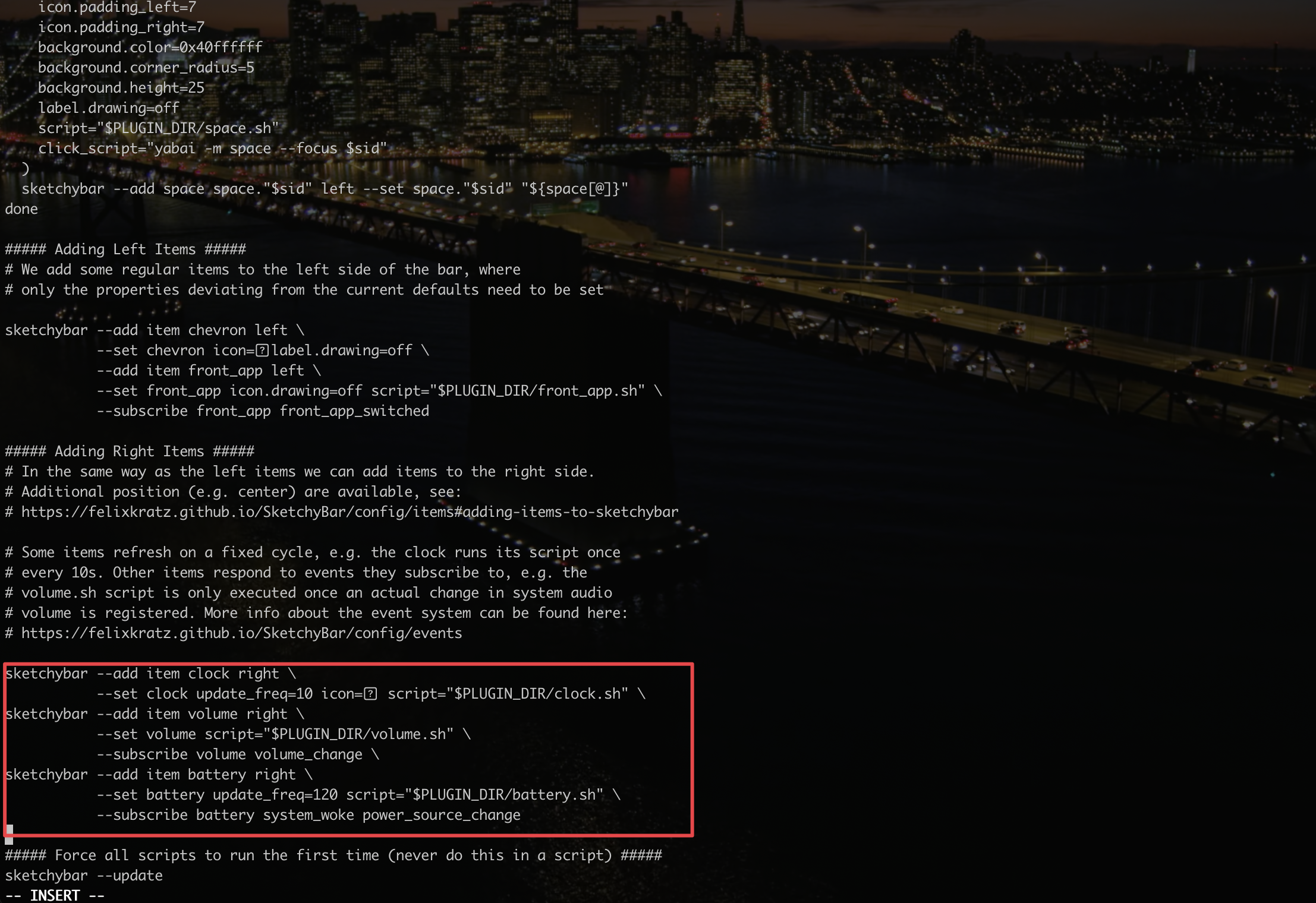
找到文件最下面,将红框位置的命令拆分成三段命令,如下图
敲击键盘i即可进入编辑模式
单开一个终端页面重启sketchybar
1 | brew services restart sketchybar |
接下来我们把三行命令放到不同文件里,用新开的终端页面操作
1 | 第一步创建文件夹 |
1 | vim clock.sh |
剪切刚刚的三个命令之一
1 | sketchybar --add item clock right \ |
按ESC退出编辑模式,授予文件执行权限
1 | :!chmod +x % |
在文件的开头输入下面命令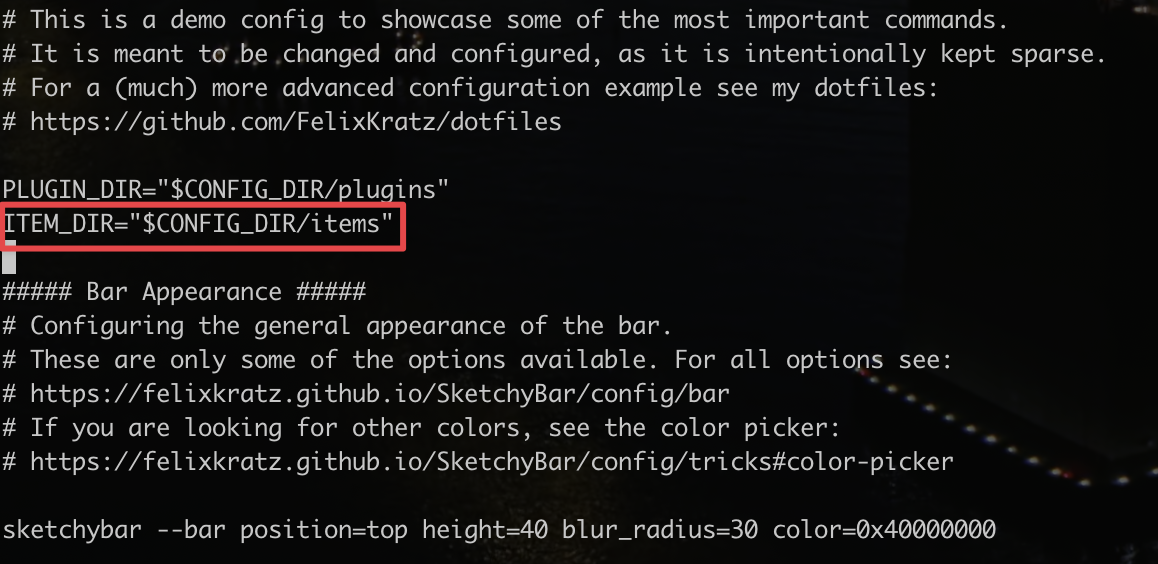
1 | ITEM_DIR="$CONFIG_DIR/items" |
在文件最下面刚刚被转移走的命令出写入以下指令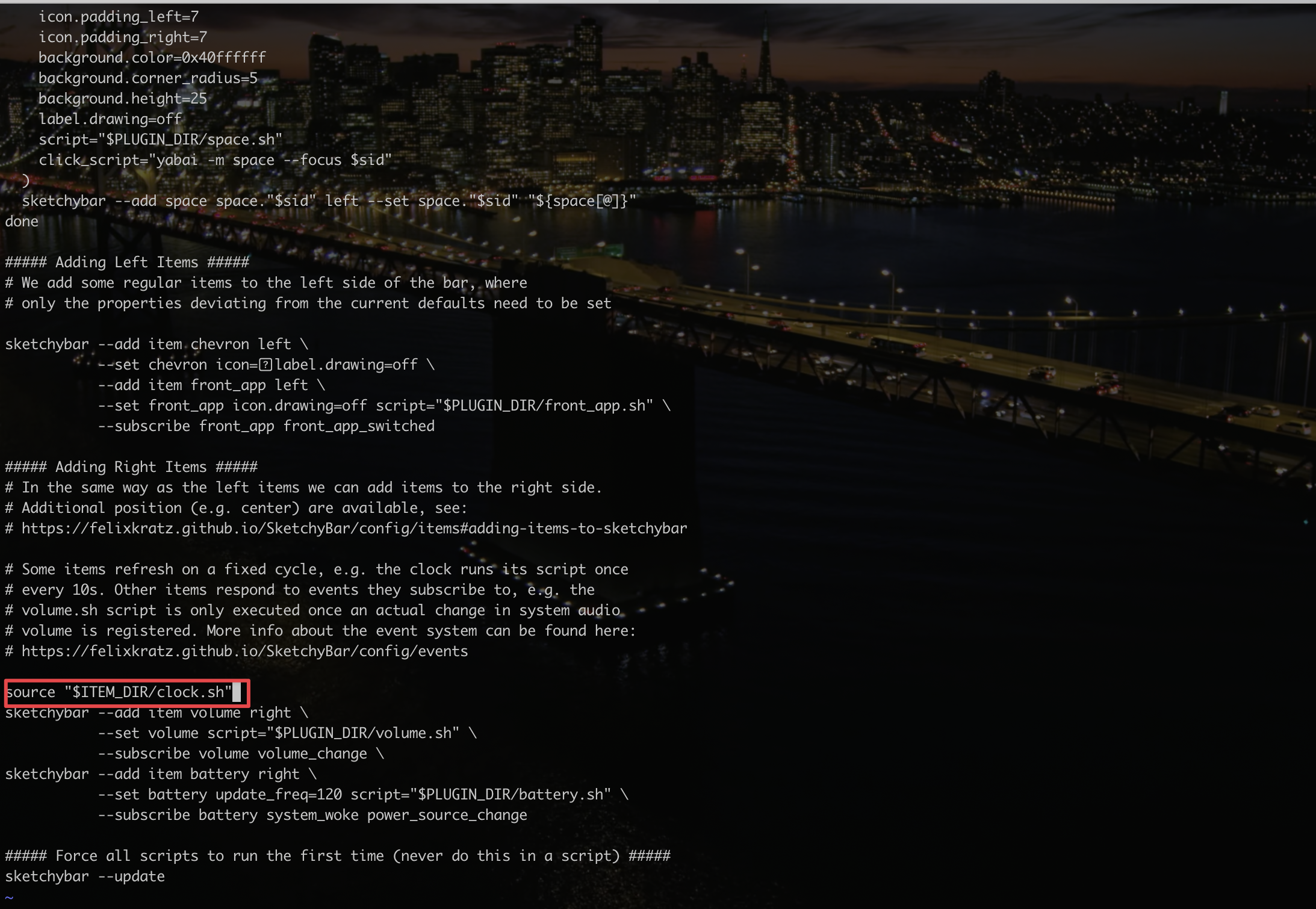
1 | source "$ITEM_DIR/clock.sh" |
重复以上步骤,将三个命令都转移完成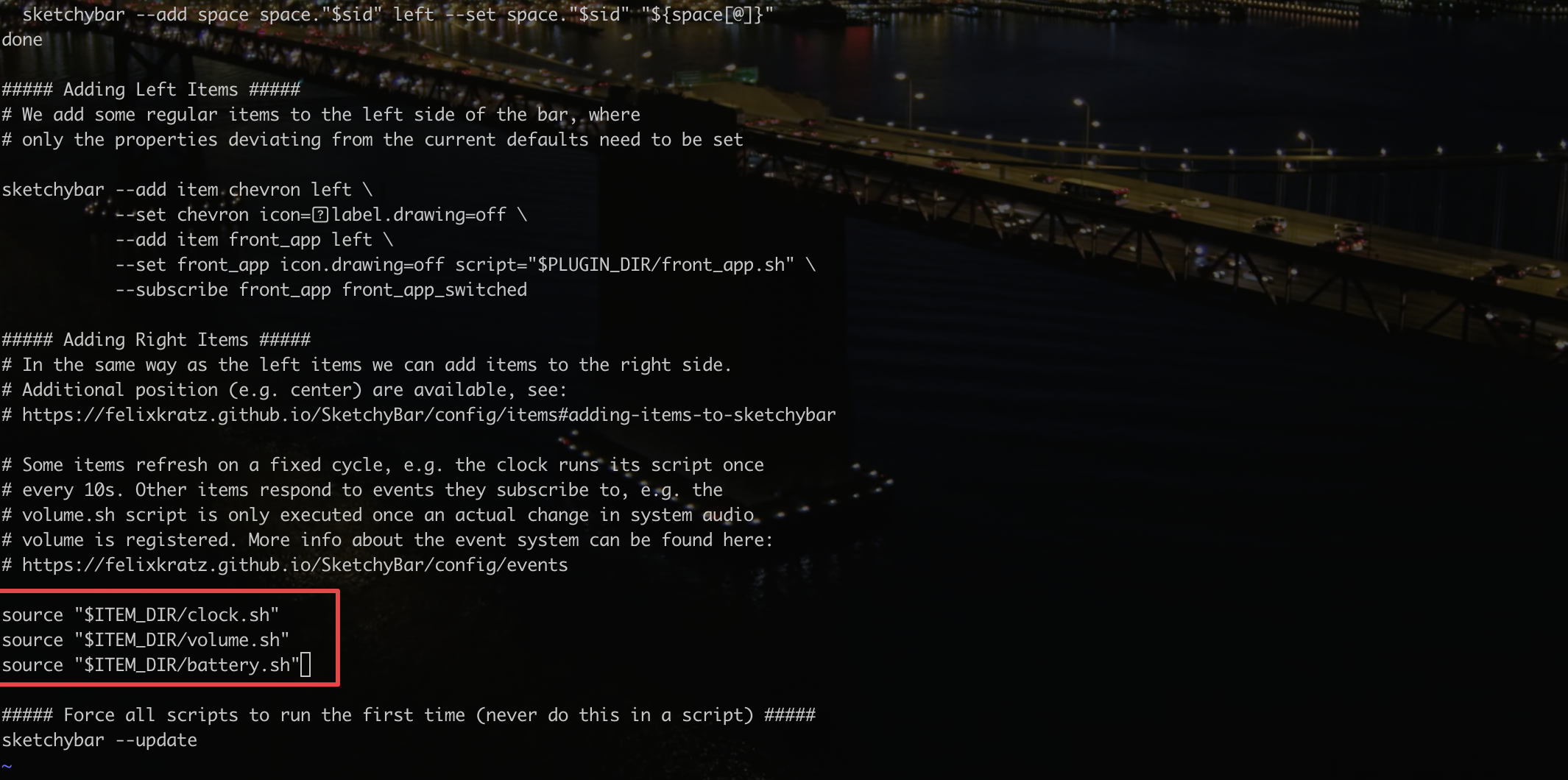
安装字体和图标
sketchybar-app-font仓库地址:https://github.com/kvndrsslr/sketchybar-app-font
进入releases,下载以下两项
还需安装 font-sf-pro、sf-symbols两个字体
1 | brew install font-sf-pro sf-symbols |
我们需要将第二个命令剪切到items文件夹下,创建front_app.sh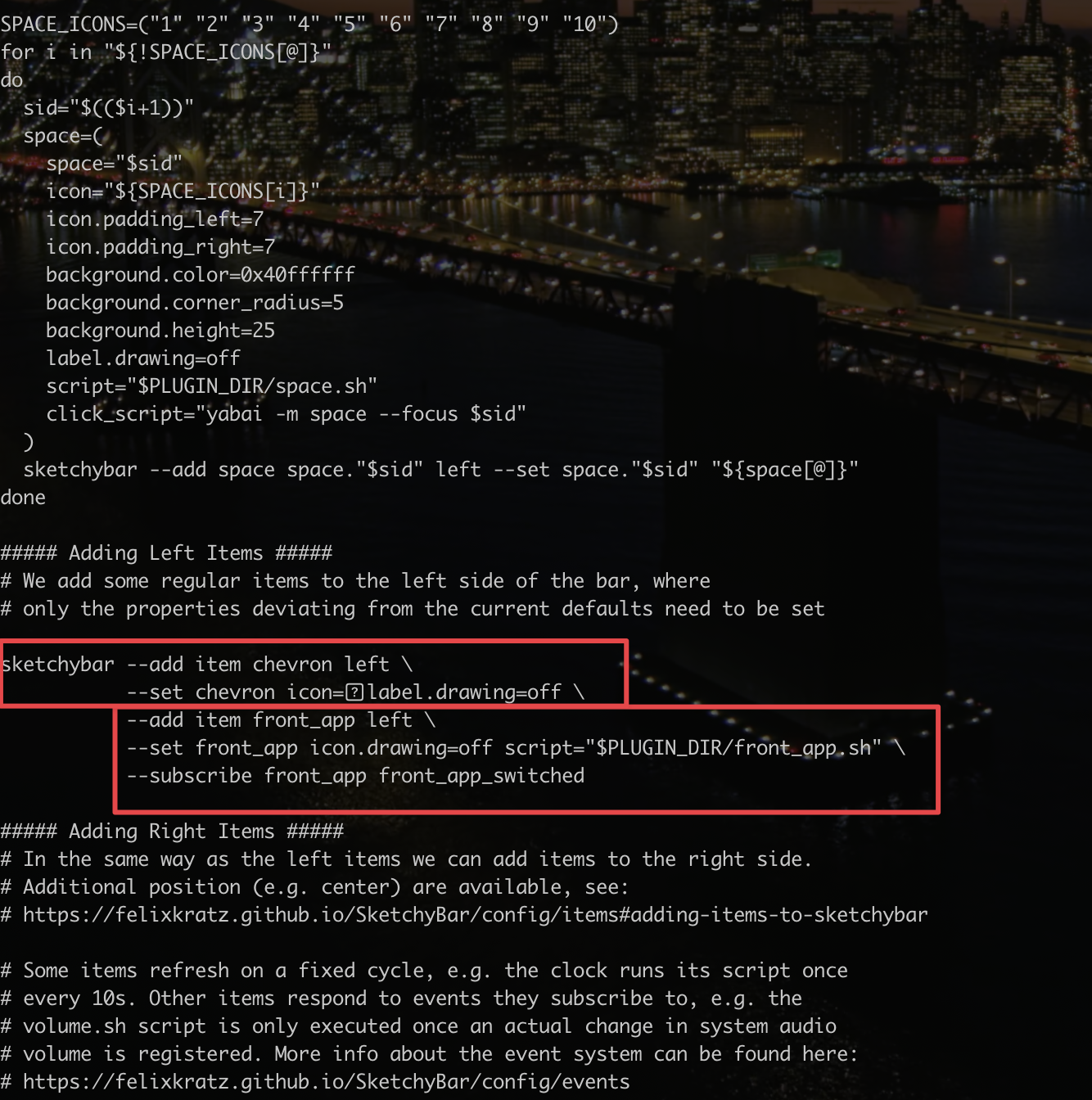
在~/.config/sketchybar/plugins/icon_map.sh 最后添加下面两行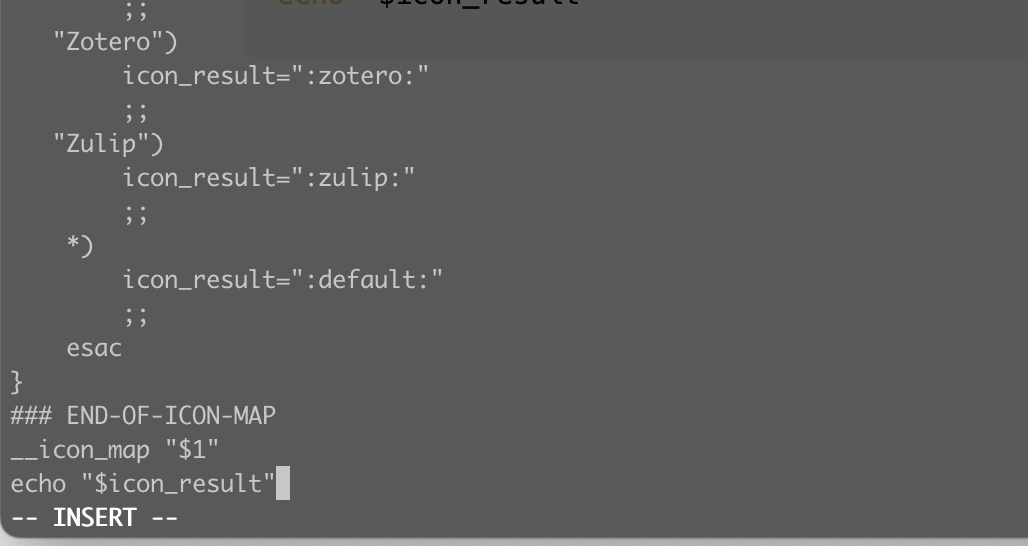
1 | __icon_map "$1" |
在~/.config/sketchybar/items/front_app.sh中修改成以下命令
1 | front_app=( |
在~/.config/sketchybar/plugins/front_app.sh中修改成以下命令
1 | if [ "$SENDER" = "front_app_switched" ]; then |
重启sketchybar,可以看到左上角出现应用图标
1 | brew services restart sketchybar |
在~/.config/sketchybar/plugins/space_windows.sh
1 | !/bin/bash |
在tems中新建spaces.sh
将sketchybarrc文件中的以下内容移到~/.config/sketchybar/items/spaces.sh
1 | !/bin/bash |
并在原来位置留下
1 | source "$ITEM_DIR/spaces.sh" |
同时修改字体SF Pro:Bold:16.0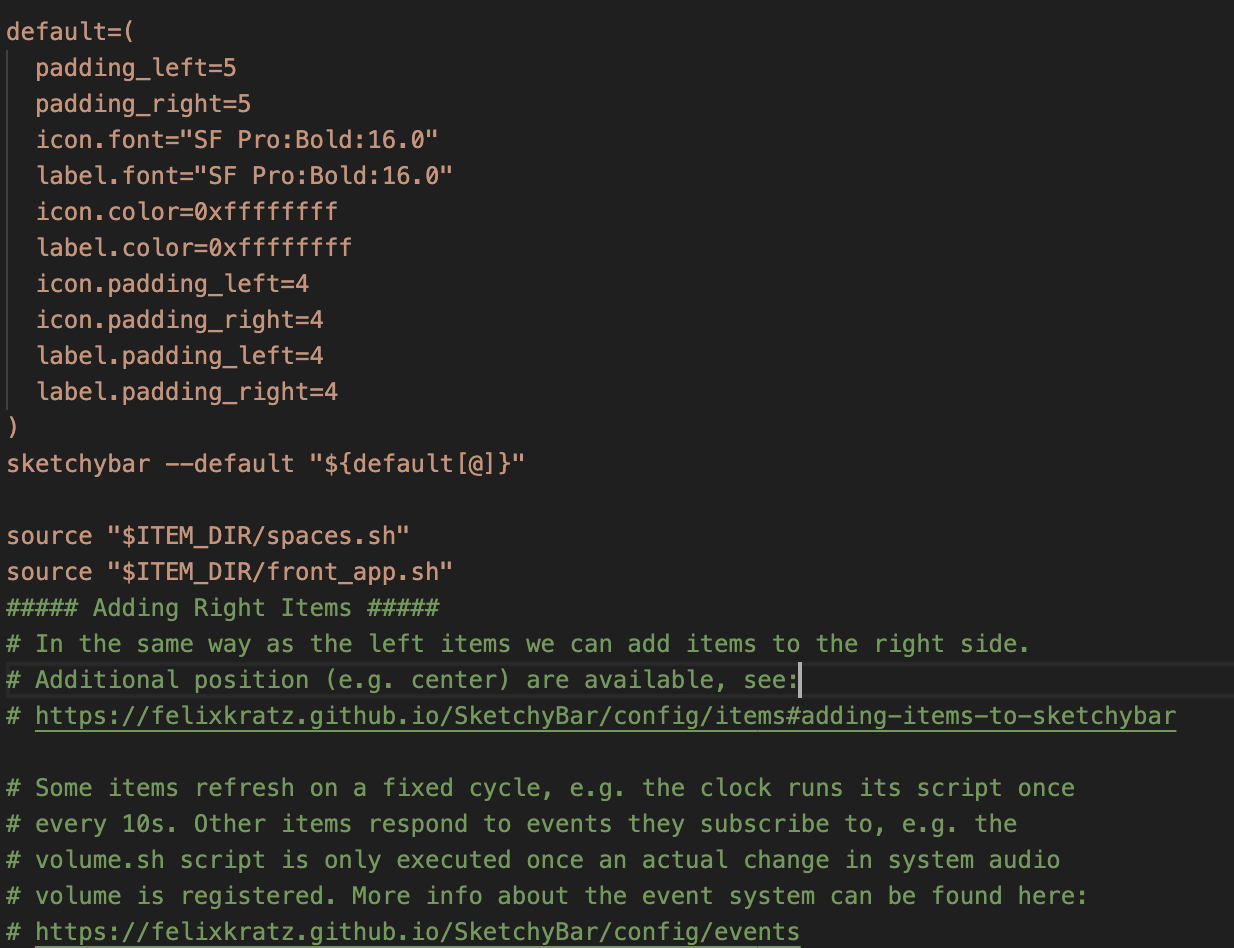
发现bar中有的图标变成?,显示不出来,是因为字体更改的问题,打开聚焦搜索,搜索SF符号,我们替换成SF符号就可以正常显示了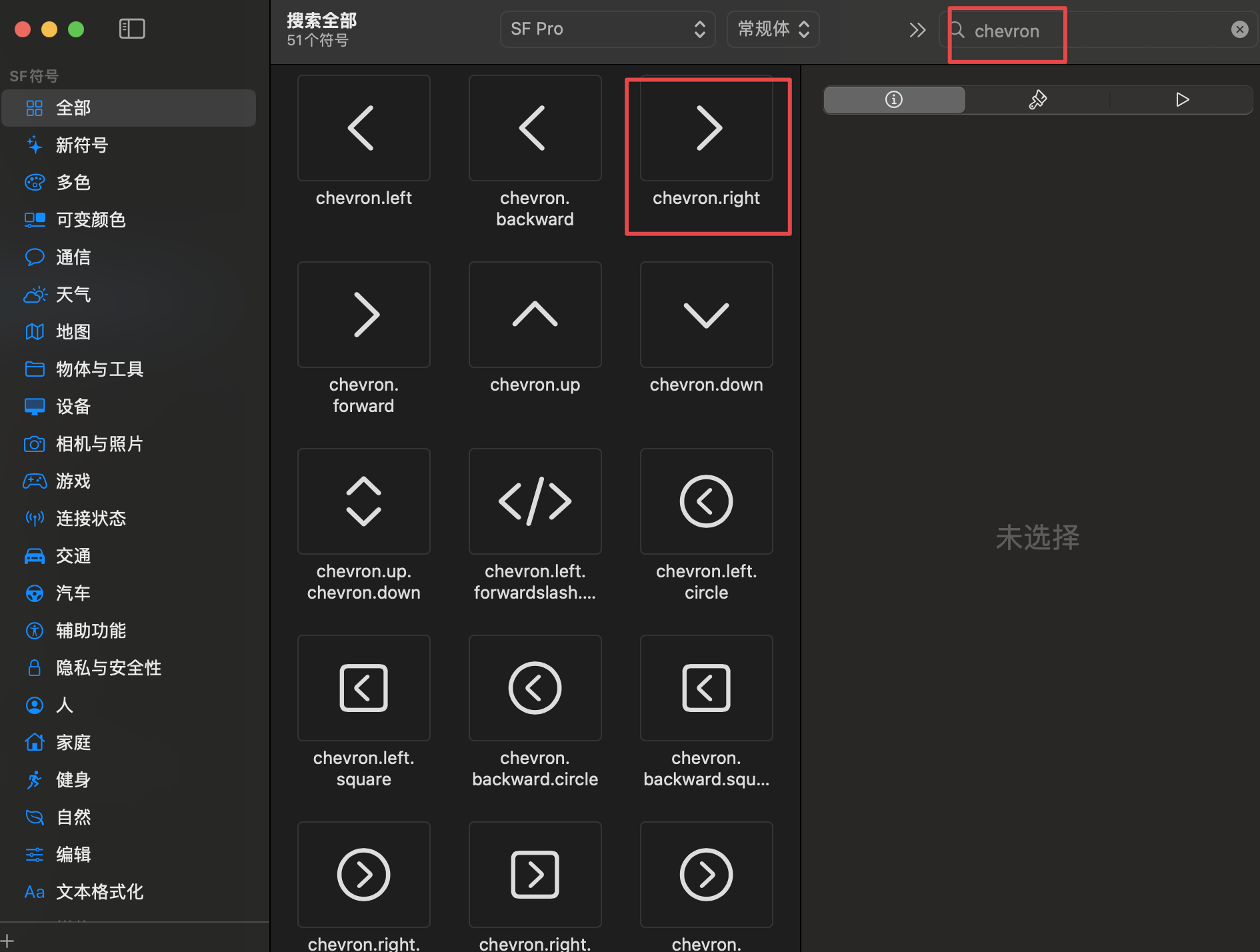
镜像原来菜单栏图标
想再显示之前菜单栏的某个内容:
输入命令
1 | sketchybar --query default_menu_items |
加入以下代码
1 | sketchybar --add alias "SoundSource,SSMainAppMenuIcon" right\ |